
How to update the St Cross Building lobby display timetable
This is only relevant to users with access to Planon
(This data also provides the information displayed on this website on the Lecture List page.)
There are two steps to this process:
- download the relevant day’s data from Planon.
- upload the resulting file to WebLearn, so that the connection from the display system can find it.

- Choose St Cross Building
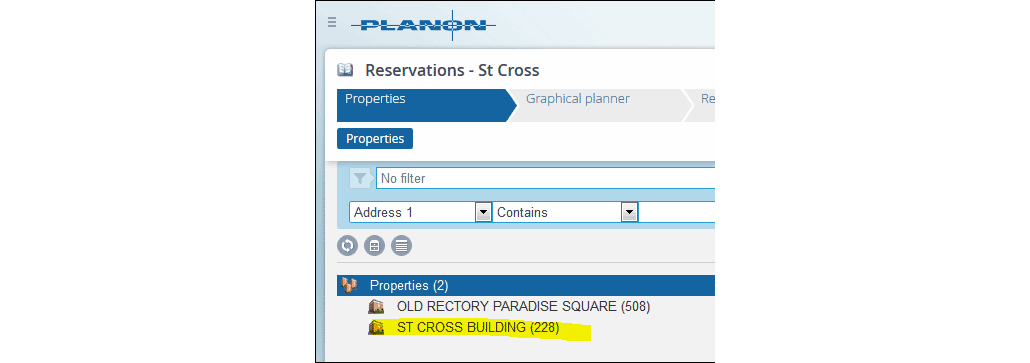
- Click the Reservations tab and set the filter to show only today's or tomorrow's bookings as required, clearing any other filters that might be set (e.g. 'Building=someplace'):
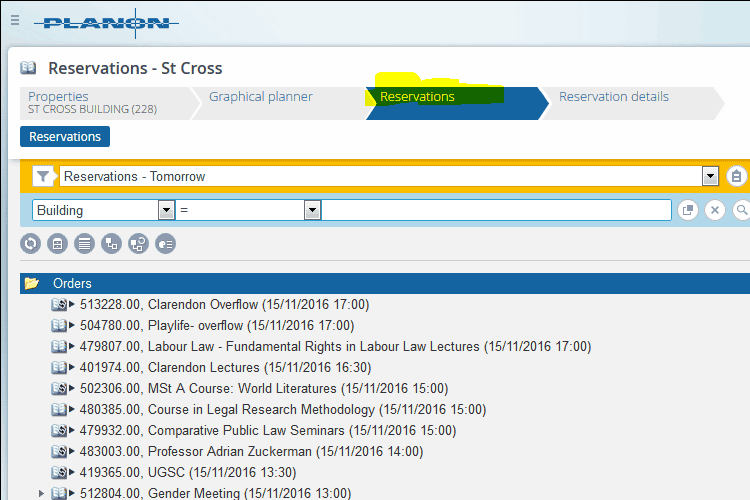
- Click the Report link:
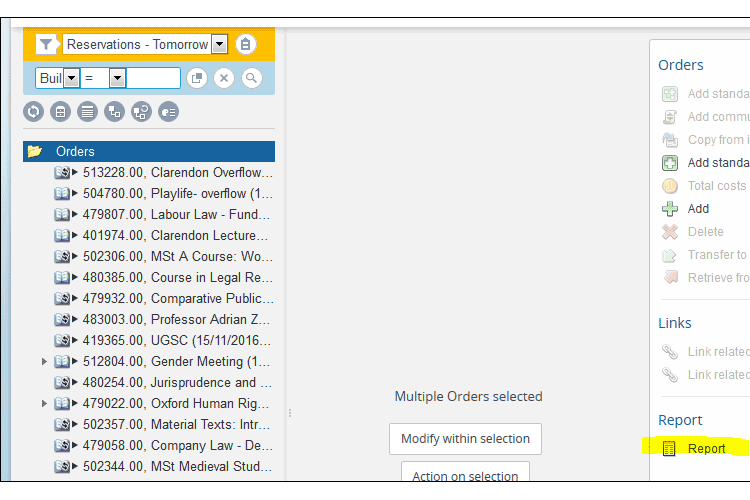
- Choose the Reservations export MRB_STX.csv report and click Save as:
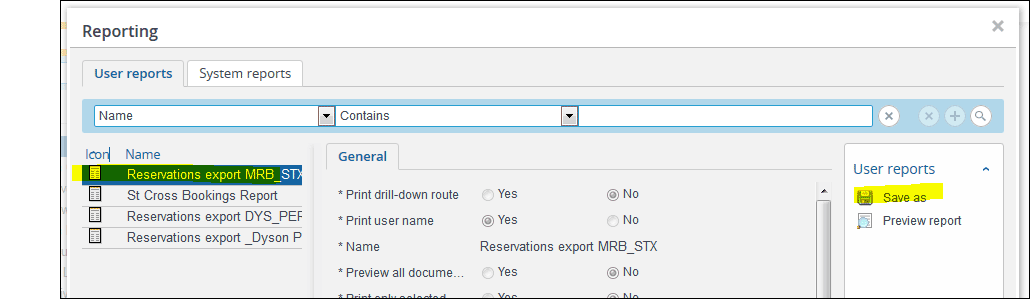
- Make sure you set the options as follows:

- When prompted, save the file on your local computer with a name in this format:
dd mm yy.csv (e.g. 25 12 17.csv)
2. The upload
Only people authorised to access the relevant section of WebLearn will be able to follow these steps. If you can’t see the items described here, contact web.support@law.ox.ac.uk
- Go to the Weblearn page Faculty of Law > Admin workgroups > IT/Website Resources
- click the Actions button on the room bookings folder row
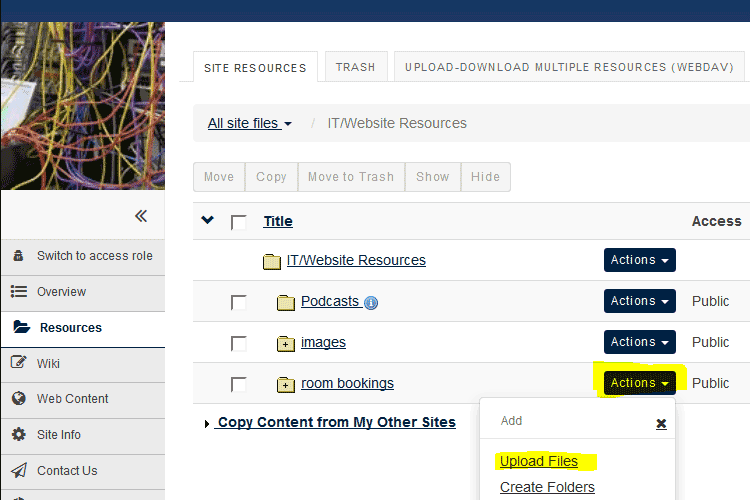
- Drag and drop the file you created earlier on to the upload panel as instructed, then click Continue
- That's it! The lobby display will show the content of the uploaded file on the relevant day. If you have uploaded a new file for the current day, it will display one minute or less after you uploaded it. You can also see/check it on the Lecture List page.