
Working with Photo, Video, Files
Working with Media
The website uses specific image dimensions for optimal display:
Hero/Banner Images:
- Dimensions: 1800px × 800px
- Use: Landing pages and subsite homepages
- Format: JPEG or PNG
- File size: Keep under 500KB for fast loading
Person Portraits:
- Dimensions: 300px × 300px (square crop)
- Use: Person content type profile images
- Format: JPEG preferred
- Guidelines: Professional headshots work best
News Images:
- Dimensions: 1200px × 900px
- Use: News article featured images
- Format: JPEG or PNG
- Guidelines: High-quality, relevant to article content
Feature Box Images:
- Dimensions: 1000px × 640px
- Use: Listing content and featured content blocks
- Format: JPEG or PNG
Text with Image:
- Dimensions: 850px × 600px
- Use: Page builder text with image elements
- Format: JPEG or PNG
Book Covers:
- Dimensions: 380px × 480px
- Use: Publication references on person pages
- Format: JPEG or PNG
Child Site Logos:
- Height: 160px (width adjusts automatically)
- Use: Subsite branding
- Format: PNG with transparent background preferred
General Guidelines:
- Use descriptive file names without spaces (use underscores or hyphens)
- Optimise images for web before uploading
- Always add meaningful alt text for accessibility
- Consider file size impact on page loading speed
Upload and manage documents for download on your pages:
Uploading New Documents:
- In the text editor, position cursor where you want the download link
- Click "Insert Media"

- Select the "Document" tab in the popup
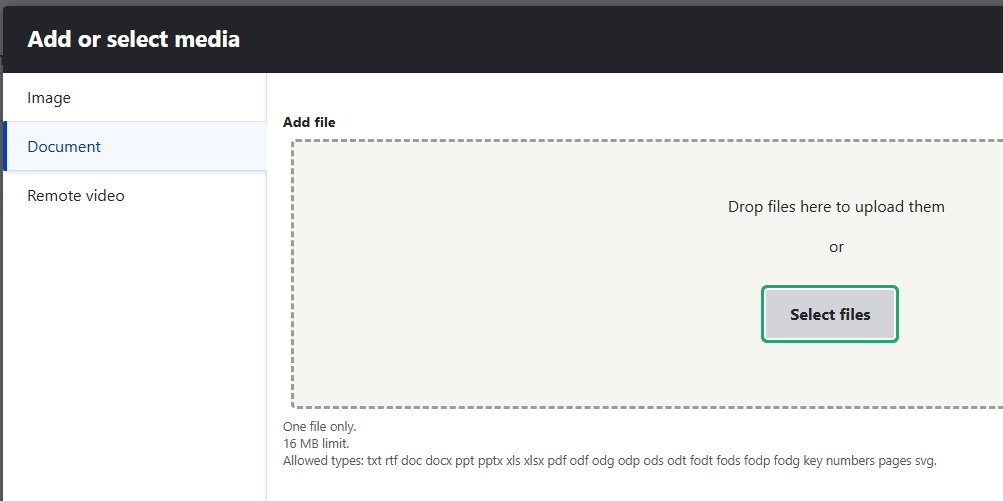
- Drag and drop your file or click "Select files"
- Once uploaded, click "Save and select"
- Click "Insert selected" to add the download link
Using Existing Documents:
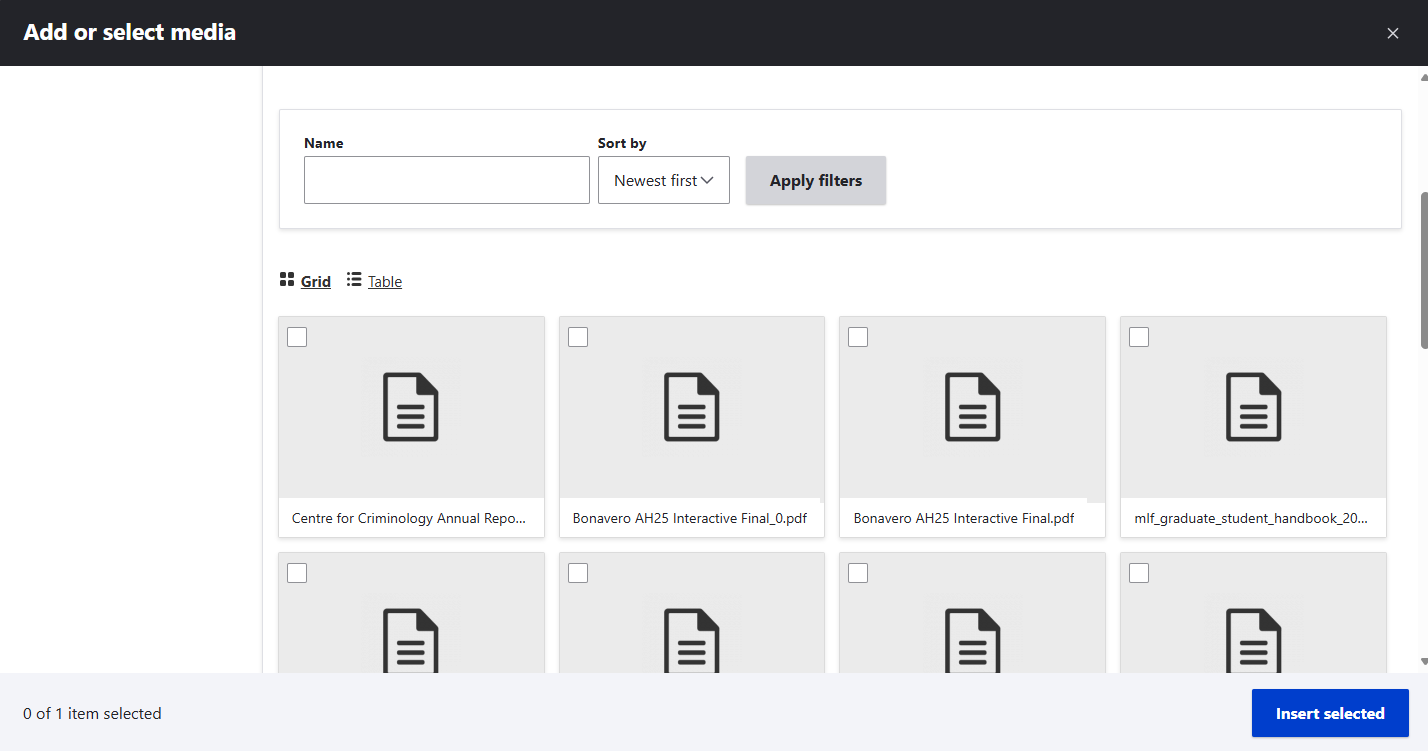
- Click "Insert Media" in the text editor
- Go to the "Document" tab
- Scroll down to see available files
- Use the "Name" filter to search for specific files
- Tick the checkbox next to your desired file
- Click "Insert selected"
Supported File Types:
- PDF documents
- Microsoft Word (.docx, .doc)
- Microsoft Excel (.xlsx, .xls)
- Microsoft PowerPoint (.pptx, .ppt)
- Plain text files (.txt)
- Rich text format (.rtf)
File Naming Best Practices:
- Use descriptive names:
annual_report_2024.pdf - Avoid spaces (use underscores or hyphens)
- Include version numbers if relevant
- Keep names concise but clear
- Use lowercase for consistency
TIP: Organise documents logically in the media library to make them easier to find and reuse across multiple pages.
Add videos to your content using the video page builder element:
Supported Video Sources:
- YouTube videos
- Vimeo videos
- Direct video file uploads (MP4, WebM)
Adding a Video Element:
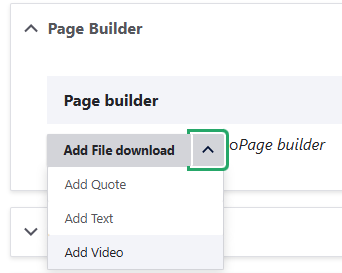
- In the Page Builder section, click "Add element"
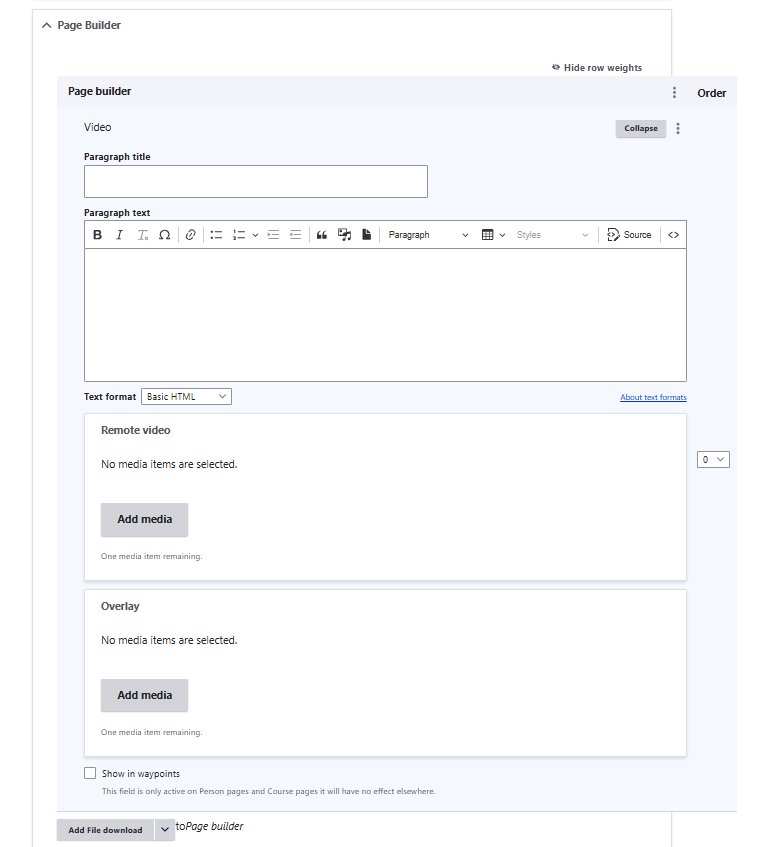
- Select "Video" from the available elements
- Enter the video URL or upload a video file
- Add a title for the video (optional but recommended)
- Provide a description if needed
- Save the element
YouTube Videos:
- Go to the YouTube video page
- Click "Share" below the video
- Copy the share URL (e.g., https://youtu.be/abc123)
- Paste this URL into the video element
Vimeo Videos:
- Go to the Vimeo video page
- Copy the URL from your browser address bar
- Paste this URL into the video element
Video Accessibility:
- Always provide a descriptive title
- Include captions or transcripts when possible
- Add a brief description of the video content
- Consider providing alternative formats for important content
TIP: Test video links before publishing to ensure they work correctly and are publicly accessible.
Organise and maintain your uploaded media files:
Accessing the Media Library:
- Go to Content > Media in the management menu
- Or click "Insert from Media Library" in any text editor
Media Types:
- Images: Photos, graphics, logos
- Documents: PDFs, Word docs, spreadsheets
- Videos: Uploaded video files
Managing Media:
- Search: Use the search box to find specific files
- Filter: Filter by media type or upload date
- Edit: Click on any media item to edit its details
- Delete: Remove unused media to keep library organised
Media Details:
- Name: Descriptive title for the media
- Alt text: For images, describe the content for accessibility
- Tags: Keywords to help categorise and find media
- Usage: See where the media is currently used on the site
Best Practices:
- Regularly review and remove unused media
- Use consistent naming conventions
- Add appropriate tags for easy searching
- Keep file sizes optimised for web use
- Maintain organised folder structure where possible
TIP: Before deleting media, check the "Usage" section to ensure it's not being used on any published pages.